Sprites and animations
Import a PNG sheet (or an Aseprite file, which is converted at build time but cannot be previewed here yet) and choose one of the twelve GBA sprite sizes.
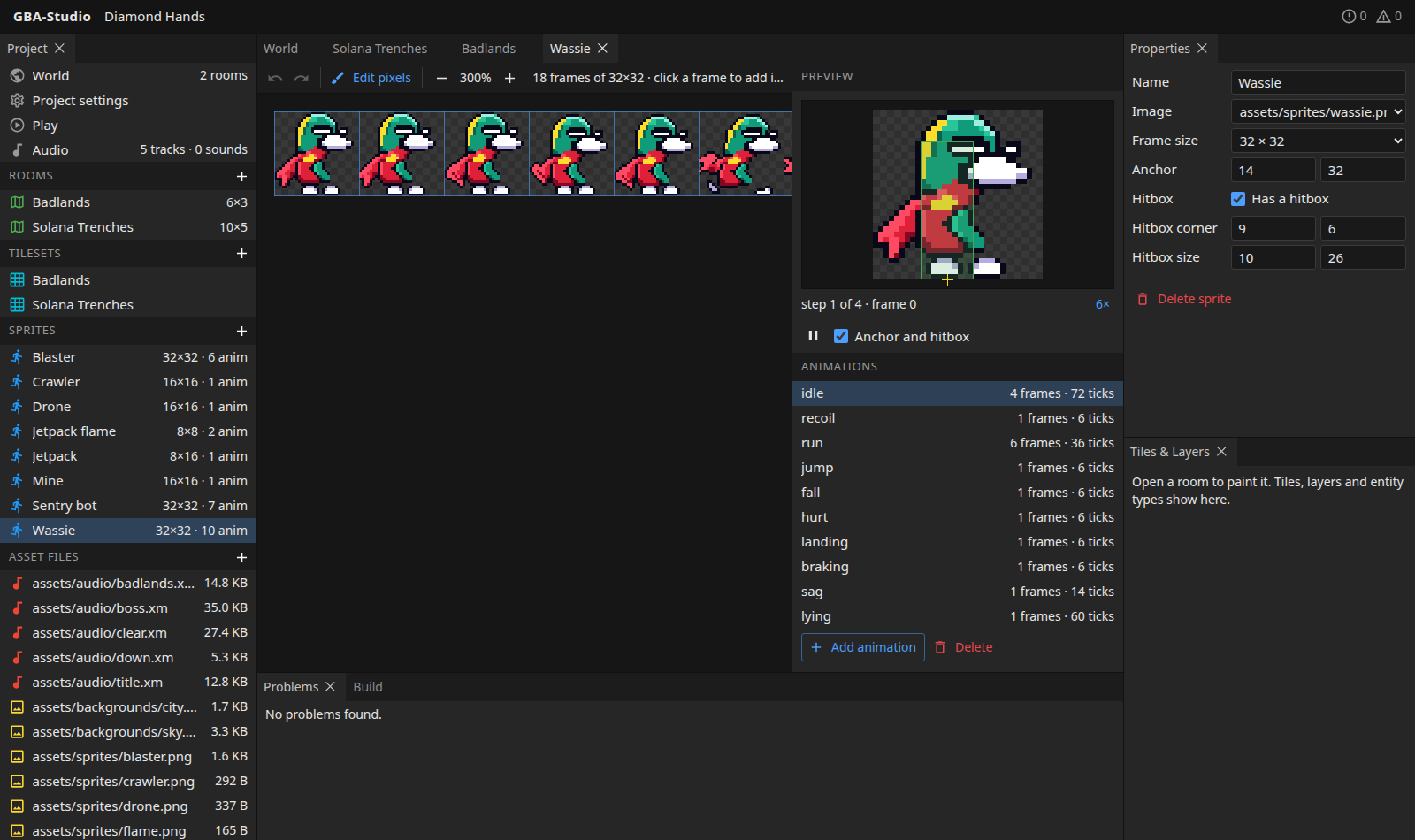
Create one
Press + beside Sprites, choose a sheet from the folder or import one, and give it a name.
The sheet
The sheet shows each frame, numbered in order. Edit pixels opens the sheet in the pixel editor. Frame sizes must be a real GBA size, such as 8x8, 16x16, 32x32 or the wide and tall ones; otherwise a problem is reported.
Animations
- Select an animation, or press Add animation.
- Click frames in the sheet in the order they should play to build it.
- Set the duration of each step in ticks: 1 tick is one GBA frame, 1/60 s.
- Reorder or remove steps, and tick Loop to make it repeat.
- Delete removes the selected animation.
The list shows each animation's frames and total ticks.
Anchor and hitbox
In Properties:
| Setting | Meaning |
|---|---|
| Anchor | The point placed at an entity's position (usually the feet). |
| Hitbox | An optional box: corner and size in pixels, relative to the frame. |
Live preview
The preview plays the selected animation at the console's real speed, with the anchor and hitbox drawn over it when Anchor and hitbox is ticked. The pause button stops it and the zoom (for example 6x) is shown on the right.
Using a sprite
Give an entity type a sprite and entities of that type show it on the map, and the build produces a SPRITE_<NAME> for the game.