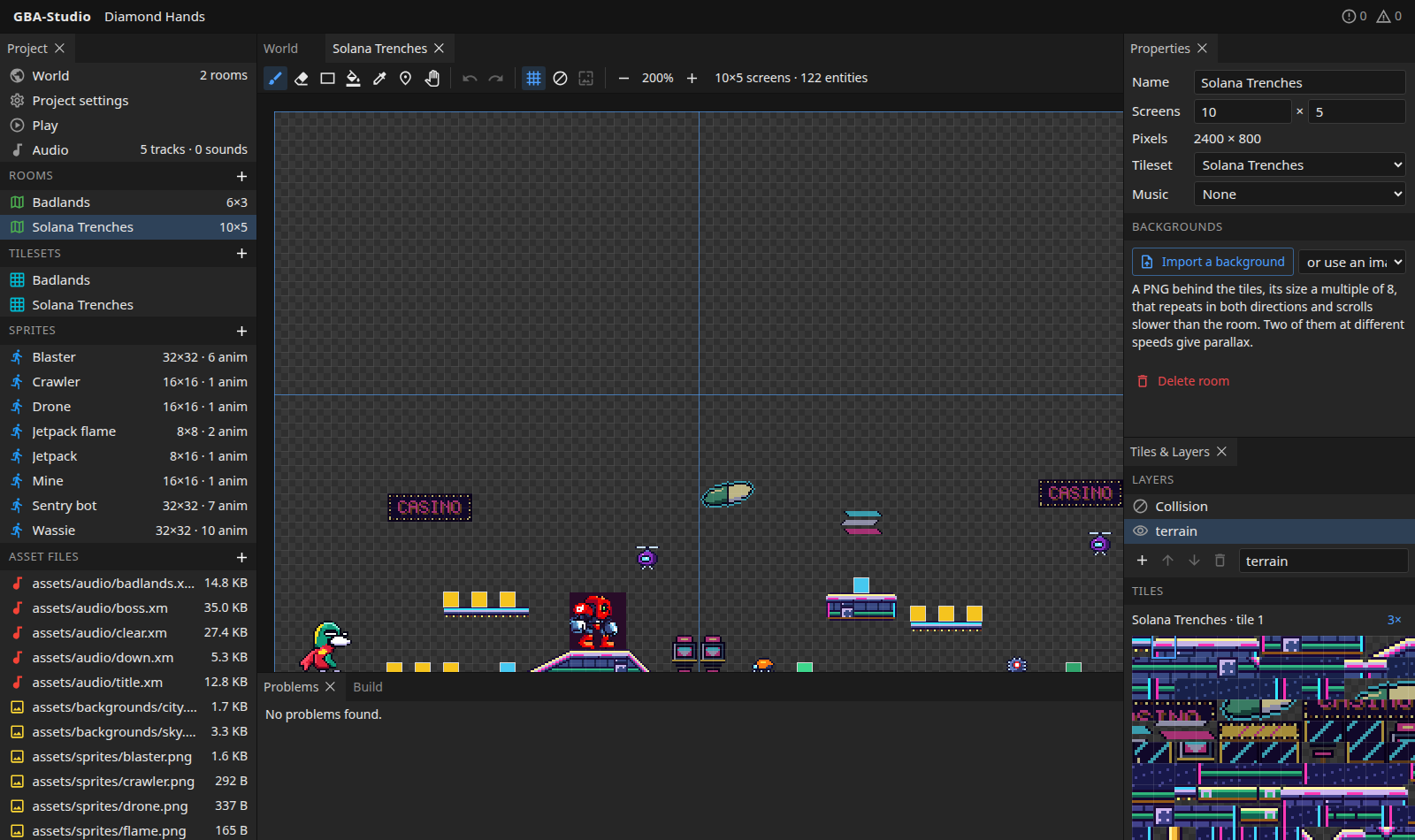
Rooms and the map editor
Open a room from the Rooms list, or select it on the world map and press Open room, to paint it.
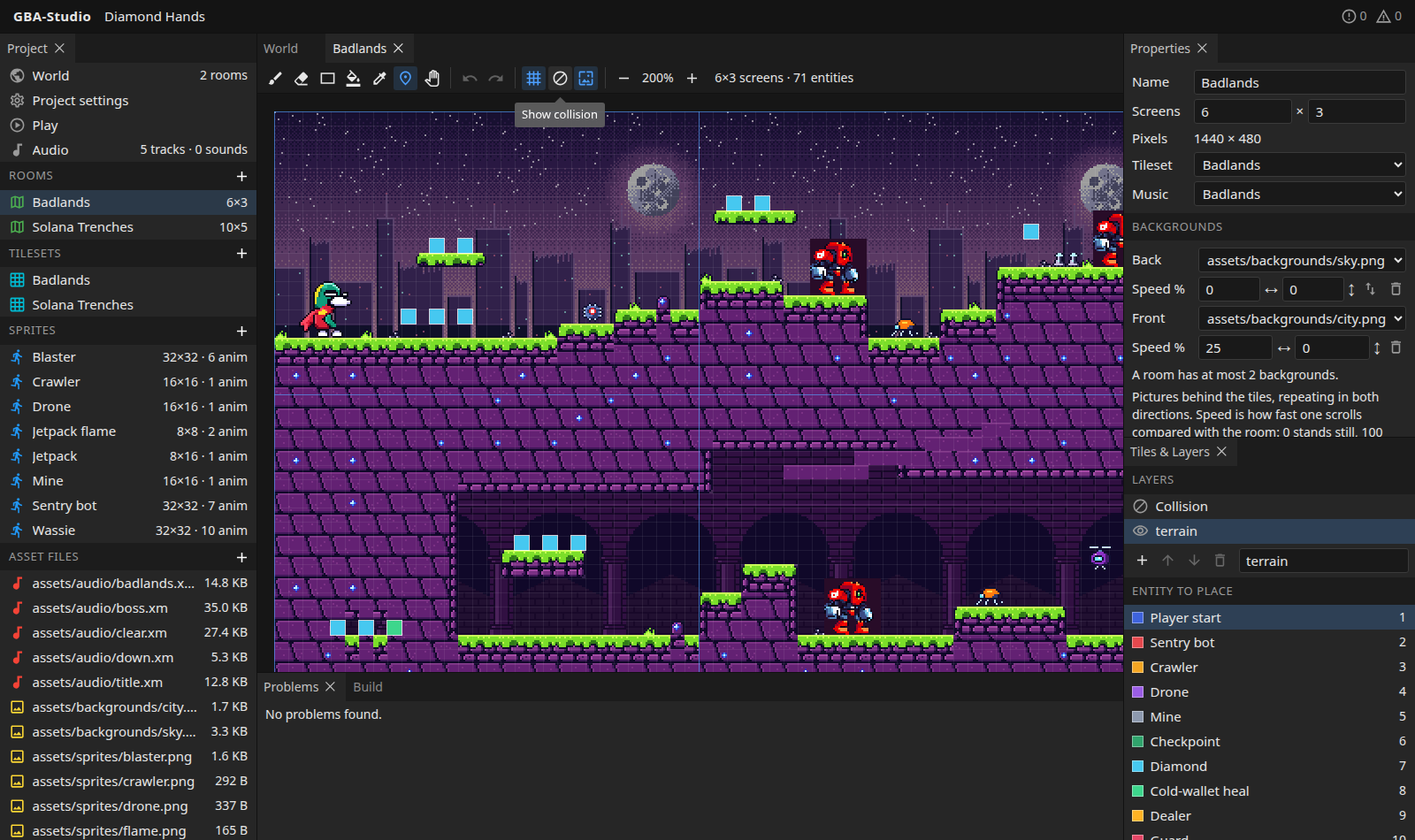
Tools
| Tool | Key | Notes |
|---|---|---|
| Brush | B | Paint the selected tile or stamp. |
| Eraser | E | |
| Rectangle | R | |
| Flood fill | G | |
| Tile picker | I, or Alt + click | Pick a tile from the map. |
| Entities | N | Place and move entities. |
| Pan | H, or hold Space | Or use the middle mouse button. |
The right mouse button erases while using the brush or rectangle. Zoom with the toolbar buttons or Ctrl + wheel. The mouse position is shown as a tile and screen coordinate. Undo and redo are on the toolbar.
Toolbar toggles show a tile grid, the collision overlay, and guides at every screen boundary (240x160 pixels).
Layers
A room has up to three tile layers. In the Tiles & Layers panel you can add, rename, reorder (bring forward, send back), hide and delete layers. A room opens on its front layer. There is also a Collision layer at the top of the list.
Stamps and the tile palette
Click a tile in the tileset palette, or drag across several to paint a block (a stamp). Painting a stamp over an area repeats its pattern from where the stroke began.
Collision
Tiles carry the collision class given to them in their tileset. Select Collision in the layers list to paint only where a cell should differ from its tile; the eraser gives a cell back to its tile. Use Show collision to tint the map with the result. With the Collision layer selected, the Collision to paint list in Tiles & Layers shows the available classes and their colours.
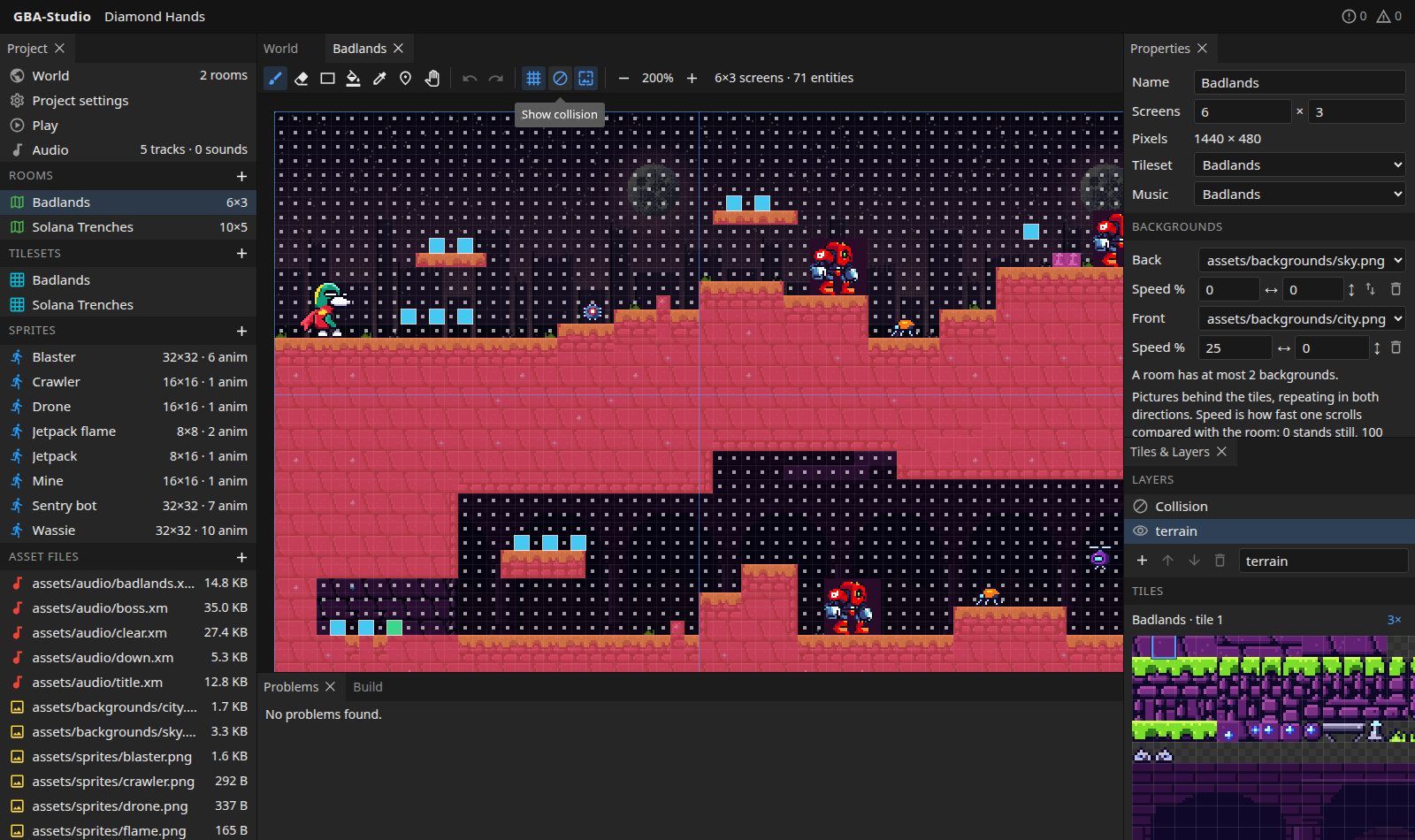
Entities
With the Entities tool, pick an entity type in the Entity to place list of the Tiles & Layers panel, then:
- click to place one;
- drag to move it;
- edit its position and typed properties in Properties;
- press
Deleteto remove the selected entity.
Entities are placed by their feet: the middle of the bottom edge. An entity type with a sprite shows that sprite on the map. Add and recolour entity types in Project settings.
Room properties
| Property | Meaning |
|---|---|
| Name | Display name; the id is the file name. |
| Screens | Size in whole screens, 1 to 32 a side. Shrinking asks first and undo brings the cut-off part back. Resizing keeps the top-left corner. |
| Tileset | The tileset the room is painted with. |
| Music | A track from Audio. |
| Backgrounds | Up to two pictures behind the tiles. |
Backgrounds
Import a PNG (or pick one in the folder) in the room's Properties for the Back and Front slots, and give each a scroll speed across and down, in percent of the camera's. 0 stands still, 100 moves with the room, and a far layer gets less than a near one. A picture repeats in both directions. The two arrows swap back and front; the bin removes a background (the image stays in the folder).
The GBA draws four layers, so tile layers and backgrounds together are at most four. The map shows backgrounds as they lie at the room's top-left corner (a toolbar button hides them); the Play panel shows them moving.
Other rooms